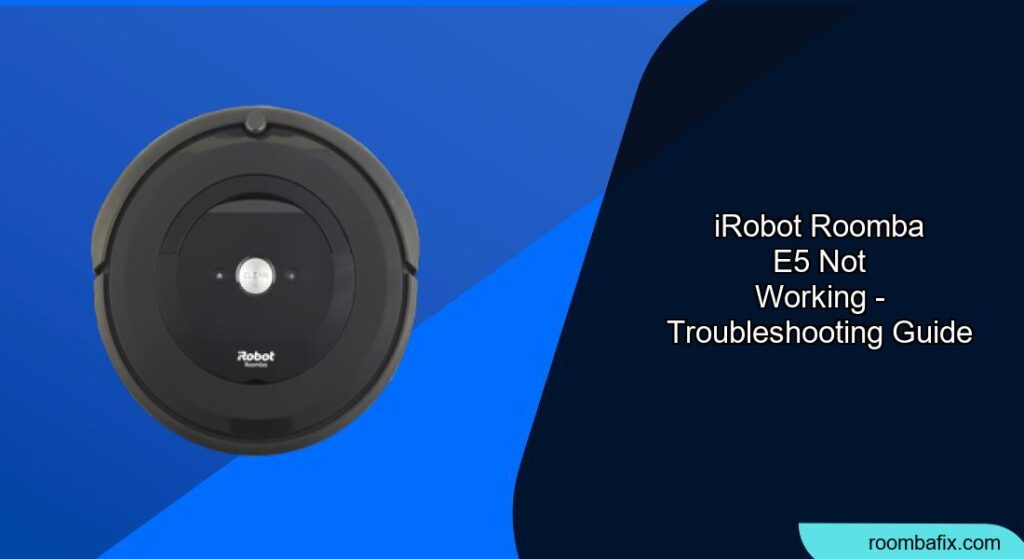
The iRobot Roomba e5 is designed to simplify your cleaning routine, but like any electronic device, it can encounter problems. This guide provides solutions for common issues, including error messages, connectivity problems, and performance concerns. Addressing these issues promptly can extend the life of your Roomba and maintain its cleaning efficiency.
Main Content Sections:
1. Identifying the Problem: Is it an Error Code?
When your Roomba e5 malfunctions, it often communicates the issue through error codes, beeps, and blinking lights. Pay attention to these signals:
- Audible Alerts: Listen for beeps or spoken messages. The Roomba will usually announce the problem.
- Troubleshooting Light: Observe the troubleshooting light; its blinking pattern indicates the error type.
- Error Codes: Some models display error codes directly.
- To repeat the error message, press the Clean button.
2. Common Error Codes and Solutions for Roomba e5
Here are some common error codes for the Roomba e5 and how to address them:
- Error 1: Left wheel is stuck. Check for obstructions and remove any debris.
- Error 2: Main brushes cannot turn. Clean the brushes and brush compartment.
- Error 3: Right wheel is hanging down or stuck. Inspect the wheel and remove any obstructions.
- Error 5: Right wheel is jammed. Check the wheel for any tangled hair or debris.
- Error 6: Roomba is stuck over an edge. Move the Roomba to a flat surface. This can also occur on dark flooring or rugs due to the cliff sensors.
- Error 7: Roomba cannot sense if wheels are on the ground. Ensure the Roomba is on a level surface.
- Error 9: Bumper sensor is dirty. Clean the bumper sensor.
- Error 10: Roomba cannot sense if wheels are on the ground. Place the Roomba on a level surface.
- Error 11: Vacuum motor not activated. This may indicate a faulty vacuum motor.
- Error 12: Roomba is stuck. Check for and remove any obstructions.
- Error 13: Roomba is on an uneven surface. Move the Roomba to a flat surface.
- Error 14: Not detecting installed bin. Ensure the bin is properly installed.
- Error 19: Cliff sensor activated near the docking area. Move the docking station or clean the cliff sensors.
3. Rebooting Your Roomba e5
Rebooting can resolve many common issues. Here’s how to do it:
- Using the Clean Button: Press and hold the “Clean” button for about 20 seconds. The Roomba should play a musical tone to confirm the reboot.
- Using Home and Spot Clean Buttons: Press and hold the “Home” and “Spot Clean” buttons simultaneously for about 10 seconds. Release the buttons when all indicators turn off, and you hear a tone.
- Via the App: Some models allow you to reboot through the iRobot Home app under “Product Settings.”
4. Factory Resetting Your Roomba e5
If a simple reboot doesn’t solve the problem, a factory reset might be necessary. Keep in mind that this will erase all personal data and settings, restoring the Roomba to its original state.
- Via the iRobot Home App: Go to “Settings,” then “About (robot name),” and select “Remove Device from Account” or “Factory Reset.”
- Manual Reset: Press and hold the “Dock,” “Spot Clean,” and “Clean” buttons simultaneously until all lights illuminate, then release. This will reset all settings to their default values.
5. Addressing Connectivity Issues
If your Roomba e5 is having trouble connecting to Wi-Fi, try the following:
- Check Wi-Fi Network: Ensure your home Wi-Fi network is stable and working.
- Reset Wi-Fi Settings: Press and hold the “Home” and “Spot Clean” buttons to reset the Wi-Fi. Follow the setup instructions in the iRobot Home app to reconnect.
- Reboot the Roomba: As mentioned earlier, rebooting can sometimes resolve connectivity issues.
- Update the App: Make sure you have the latest version of the iRobot Home app installed.
6. Cleaning and Maintenance Tips
Regular cleaning and maintenance are crucial for optimal performance:
- Empty the Bin: Empty the dustbin after each cleaning session.
- Clean the Brushes: Remove and clean the main brushes and edge-sweeping brush regularly.
- Clean the Filter: Clean the filter by tapping it against a bin to remove debris. Replace the filter every few months.
- Wipe Sensors: Use a clean, dry cloth to wipe the sensors, including cliff sensors and charging contacts.
- Check the Wheels: Ensure the wheels are free of hair and debris.
7. Battery Issues and Solutions
If your Roomba e5 is not charging or has a short battery life:
- Check Charging Contacts: Ensure the charging contacts on both the Roomba and the base are clean.
- Reboot the Roomba: Removing and reinstalling the battery forces the Roomba to reboot, which can sometimes resolve charging issues.
- Replace the Battery: If the battery is old or damaged, consider replacing it with an iRobot authentic battery. Finding the correct, authentic iRobot replacement battery for your Roomba e5 is easy on Amazon.
- Initial Charge: Charge the Roomba on the Home Base for at least 3 hours before its first complete cleaning cycle.
8. Troubleshooting Guide
| Problem | Possible Solutions |
|---|---|
| Roomba not turning on | Remove and reinstall the battery to force a reboot. Ensure the battery is properly charged. |
| Roomba not charging | Clean the charging contacts on the Roomba and the base. Ensure the base is plugged in and functioning. |
| Roomba getting stuck frequently | Clear clutter from floors. Ensure the Roomba can navigate over transitions between rooms. |
| Poor cleaning performance | Clean or replace the filter. Clean the brushes and brush compartment. |
| Roomba not connecting to Wi-Fi | Check your home Wi-Fi network. Reset the Roomba’s Wi-Fi settings and reconnect. |
| Roomba bumping into objects forcefully | Clean the bumper sensor. |
| Roomba not docking | Ensure the charging base is in an open area. Clean the charging contacts. |
| Roomba stops on rugs | Clean the cliff sensors to prevent false detections. |
| Roomba displays Error 11 | Clean the cleaning head module motor or replace the cleaning head module. |
FAQ
What does it mean when my Roomba e5 is making strange noises?
Strange noises often indicate that something is stuck in the brushes or wheels. Turn off the Roomba and inspect these components for hair, string, or other debris. Cleaning these parts regularly can prevent unusual noises.
How often should I replace the filter on my Roomba e5?
The filter should be replaced every 2-3 months, depending on usage. If you have pets or allergies, you may need to replace it more frequently. A clean filter ensures optimal suction and cleaning performance.
Can I use third-party replacement parts for my Roomba e5?
While third-party parts might be cheaper, it’s best to use iRobot authentic parts. These are designed specifically for your Roomba model and ensure proper fit and performance. Non-genuine parts may damage your Roomba or void the warranty.
What should I do if my Roomba e5 keeps getting stuck in the same area?
If your Roomba consistently gets stuck in a particular area, consider using a virtual wall barrier to prevent it from entering that space. Alternatively, identify and remove any obstacles that might be causing the problem.
How do I clean the Roomba e5’s cliff sensors?
Use a clean, dry cloth to gently wipe the cliff sensors on the bottom of the Roomba. Dust or debris on these sensors can cause the Roomba to think it’s near a drop-off, even when it’s not.
What if my Roomba e5 is still not working after trying these steps?
If you’ve tried all the troubleshooting steps and your Roomba e5 is still not working, it may require professional repair. Contact iRobot Customer Care for further assistance, especially if your Roomba is still under warranty.
Tips, Warnings, and Best Practices:
- Safety First: Always turn off the Roomba before performing any maintenance or cleaning.
- Regular Maintenance: Consistent cleaning and maintenance are key to preventing issues.
- Avoid Liquids: Never spray cleaning solutions directly onto the Roomba.
- Check for Updates: Keep your iRobot Home app updated to ensure compatibility and access to the latest features and fixes.
- Battery Care: To maximize battery life, keep the Roomba charged when not in use and avoid leaving it discharged for extended periods.
Conclusion
By following these troubleshooting steps, you can address many common issues with your iRobot Roomba e5. Regular maintenance, prompt error resolution, and careful attention to battery and connectivity can ensure your Roomba continues to provide efficient and reliable cleaning. If problems persist, don’t hesitate to seek professional support from iRobot Customer Care.