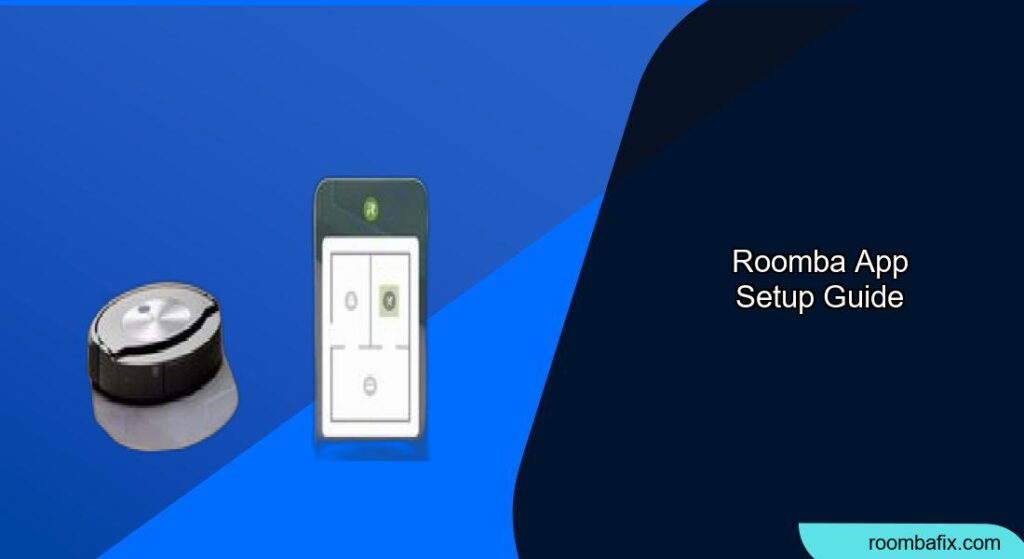
Setting up your Roomba with the app unlocks a world of convenience, allowing you to schedule cleanings, monitor progress, and customize settings right from your smartphone. This guide provides a comprehensive walkthrough of the Roomba app setup process, ensuring a smooth and efficient experience. If you are struggling with the Roomba app setup, this guide will help you to get it done.
Preparing for Roomba App Setup
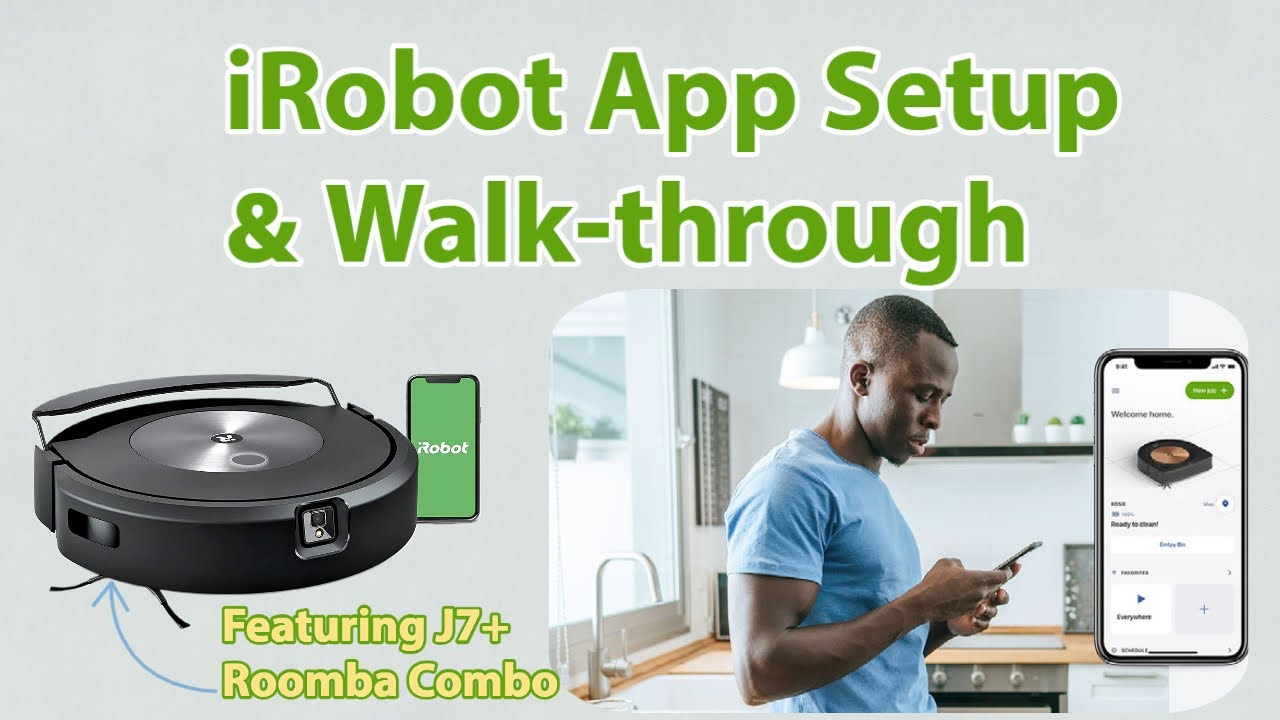
Before you begin, ensure you have everything you need for a smooth setup:
- Download the iRobot Home App: Available on both the App Store (iOS) and Google Play Store (Android).
- Wi-Fi Network: Ensure you have a stable 2.4 GHz Wi-Fi network. Roomba devices do not support 5 GHz networks.
- Roomba Model Compatibility: Check that your Roomba model is compatible with the app. Most modern Roomba models are, but older versions might not be supported.
- Account Creation: Have an iRobot account ready. You can create one directly within the app if you don’t already have one.
Step-by-Step Guide to Connecting Your Roomba to the App
Connecting your Roomba to the app involves a series of straightforward steps. Here’s how to do it:
- Charge Your Roomba: Ensure your Roomba is fully charged before starting the setup process. This prevents interruptions during setup.
- Open the iRobot Home App: Launch the app on your smartphone or tablet.
- Create or Log In to Your Account: If you’re a new user, create an account. Otherwise, log in with your existing credentials.
- Add Your Roomba:
- Tap the “Add a Robot” or “+” button in the app.
- Select your Roomba model from the list of available devices.
- Enable Location Services: The app will prompt you to enable location services. This is required for the Roomba to connect to your Wi-Fi network.
- Connect to Wi-Fi:
- The app will search for available Wi-Fi networks.
- Select your 2.4 GHz Wi-Fi network and enter the password.
- Activate Roomba: Follow the app’s instructions to wake up your Roomba. This usually involves pressing the “Clean” button on the Roomba.
- Pairing Process: The app will guide you through the pairing process, which may involve pressing and holding specific buttons on your Roomba.
- Name Your Roomba: Once connected, you can name your Roomba for easy identification (e.g., “Living Room Roomba”).
- Complete Setup: Follow any additional prompts in the app to finalize the setup, such as setting cleaning preferences or scheduling initial cleaning runs.
Troubleshooting Common Roomba App Connection Issues
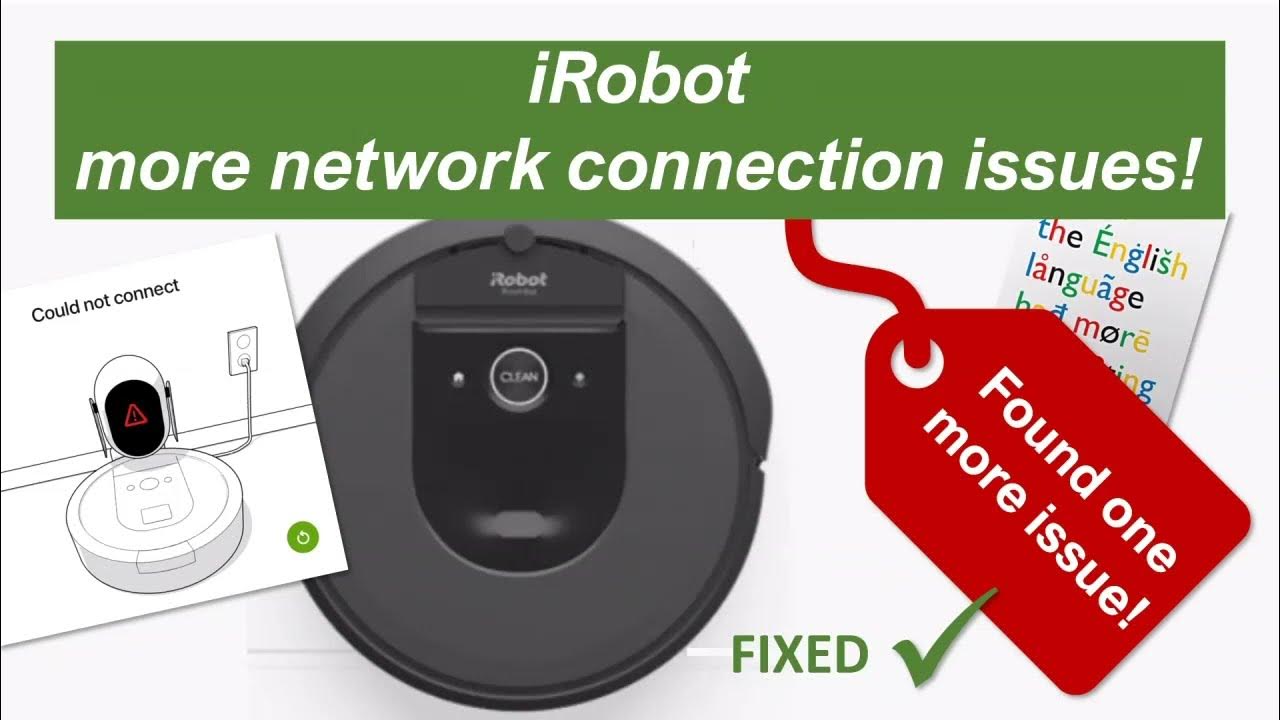
Encountering issues during the Roomba app setup is not uncommon. Here are some solutions to common problems:
- Wi-Fi Connectivity Issues:
- Problem: Roomba fails to connect to the Wi-Fi network.
- Solution: Double-check the Wi-Fi password, ensure the network is 2.4 GHz, and move the Roomba closer to the router. Restarting your router can also help.
- App Freezing or Crashing:
- Problem: The iRobot Home App freezes or crashes during setup.
- Solution: Close and reopen the app. If the issue persists, try restarting your smartphone or tablet.
- Roomba Not Discoverable:
- Problem: The app cannot find your Roomba during the “Add a Robot” process.
- Solution: Ensure the Roomba is powered on and in pairing mode (usually indicated by a flashing light). Restarting the Roomba by holding down the “Clean” button for 10 seconds can also resolve this.
- Account Login Problems:
- Problem: Unable to log in to your iRobot account.
- Solution: Verify your email and password. If you’ve forgotten your password, use the “Forgot Password” option to reset it.
- Firmware Update Errors:
- Problem: Issues during firmware updates.
- Solution: Ensure the Roomba is connected to a stable Wi-Fi network and has sufficient battery life. Avoid interrupting the update process.
Utilizing Advanced Features After Roomba App Setup
Once your Roomba is successfully connected to the app, you can explore its advanced features:
- Scheduling: Set up a cleaning schedule to automatically clean your home at specific times and days.
- Smart Maps: If your Roomba model supports it, create smart maps of your home to direct the Roomba to specific areas or set up virtual boundaries.
- Custom Cleaning: Adjust cleaning settings such as suction power and cleaning modes.
- Real-time Monitoring: Track the Roomba’s cleaning progress in real-time.
- Voice Control: Integrate your Roomba with voice assistants like Amazon Alexa or Google Assistant for voice-activated control.
Tips for Optimizing Your Roomba App Experience
To get the most out of your Roomba app, consider these tips:
- Keep the App Updated: Regularly update the iRobot Home App to ensure you have the latest features and bug fixes.
- Maintain a Strong Wi-Fi Signal: A strong, stable Wi-Fi signal is crucial for seamless communication between the app and the Roomba.
- Regularly Clean Your Roomba: Clean the Roomba’s brushes, filters, and sensors to maintain optimal performance.
- Explore Smart Features: Take the time to explore and customize the smart features offered by your Roomba model to suit your specific cleaning needs.
FAQ
How do I reset my Roomba’s Wi-Fi connection?
To reset your Roomba’s Wi-Fi, press and hold the “Home” and “Spot Clean” buttons simultaneously until you hear a tone. Then, follow the app’s instructions to reconnect to Wi-Fi.
What does the Roomba app offer besides scheduling?
The Roomba app offers features like smart mapping, custom cleaning preferences, real-time tracking, and integration with voice assistants like Amazon Alexa and Google Assistant.
Can I use the Roomba app without a Wi-Fi connection?
No, the Roomba app requires a Wi-Fi connection to communicate with your Roomba and control its functions remotely. Without Wi-Fi, you can only use the physical “Clean” button on the Roomba for basic operation.
What if my Roomba keeps disconnecting from the app?
Ensure your Wi-Fi network is stable and the Roomba is within range of the router. Check for any interference from other devices and consider restarting your router and Roomba.
How do I update my Roomba’s firmware through the app?
The iRobot Home App will automatically notify you when a firmware update is available. Follow the on-screen instructions to initiate the update, ensuring the Roomba remains connected to Wi-Fi and has sufficient battery life.
Why does the Roomba app need location services enabled?
The Roomba app requires location services to discover and connect to your Wi-Fi network during the initial setup. This is a standard requirement for many IoT (Internet of Things) devices.
Warnings and Best Practices
- Security: Always use a strong, unique password for your iRobot account and Wi-Fi network to protect your device from unauthorized access.
- Privacy: Be mindful of the data collected by the Roomba, such as smart maps of your home. Review and adjust privacy settings in the app as needed.
- Maintenance: Regularly inspect and maintain your Roomba to ensure it operates efficiently and safely.
Conclusion
Setting up your Roomba with the app provides enhanced control and customization, making your cleaning routine more efficient and convenient. By following this comprehensive guide, you can easily complete the Roomba app setup and take full advantage of its smart features. Enjoy a cleaner home with just a few taps on your smartphone.