Programming your Roomba allows you to customize its cleaning schedule and behavior, ensuring your floors are spotless even when you’re not around. This guide will walk you through the steps to program your Roomba effectively, covering everything from basic scheduling to advanced features.
Roombas have revolutionized home cleaning, providing a convenient and automated way to keep floors clean. However, to truly maximize the benefits of your Roomba, you need to know how to program it properly. This involves setting up cleaning schedules, understanding different cleaning modes, and possibly even integrating it with smart home systems. This article offers detailed instructions and valuable tips to help you get the most out of your robotic vacuum.
Setting Up Your Roomba for the First Time
Before diving into programming, ensure your Roomba is properly set up.
- Charge the Battery: Place your Roomba on its charging dock and allow it to charge fully. This usually takes about 2-3 hours.
- Install the iRobot Home App: Download the iRobot Home app from your app store (available on iOS and Android). This app is essential for programming and controlling your Roomba remotely.
- Connect to Wi-Fi: Follow the app’s instructions to connect your Roomba to your home Wi-Fi network. This enables remote control and advanced features.
Scheduling Cleanings with the iRobot Home App
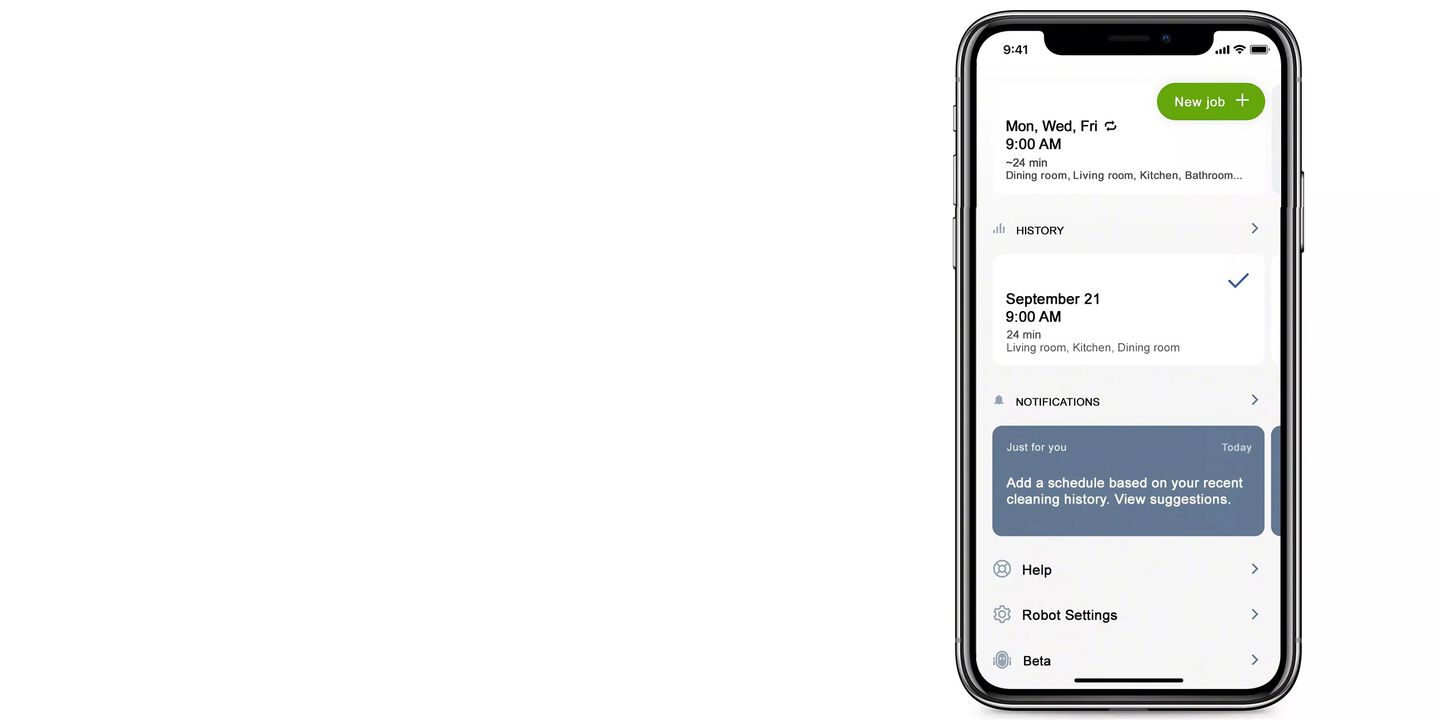
One of the primary functions of programming a Roomba is setting up a cleaning schedule.
- Open the iRobot Home App: Launch the app on your smartphone or tablet.
- Navigate to Schedules: Look for the “Schedule” option in the main menu.
- Create a New Schedule: Tap the “+” icon or the “Add a Cleaning Schedule” button.
- Set the Day and Time: Choose the days of the week and the time you want your Roomba to start cleaning.
- Confirm and Save: Review your settings and save the schedule. You can create multiple schedules for different days and times.
Understanding Roomba Cleaning Modes

Roombas come with various cleaning modes that you can program or select manually.
- Automatic Mode: This is the standard cleaning mode where Roomba cleans the entire floor area.
- Spot Cleaning Mode: Use this mode for focused cleaning in a specific area. Place the Roomba in the center of the area and activate spot cleaning.
- Edge Cleaning Mode: Some Roomba models have an edge cleaning mode that focuses on cleaning along walls and edges.
- Max Mode: This mode provides a deeper clean with increased suction power. It’s useful for heavily soiled areas but may drain the battery faster.
Using Virtual Walls and Keep-Out Zones

To prevent your Roomba from entering certain areas, use virtual walls or keep-out zones.
- Virtual Wall Barriers: Place these devices in doorways or areas you want to block. Roombas will detect the barrier and avoid crossing it.
- Keep-Out Zones (via App): In the iRobot Home App, you can define keep-out zones on your home map, instructing the Roomba to avoid these areas during cleaning. This is particularly useful for pet feeding stations or delicate furniture.
Integrating Roomba with Smart Home Systems
Roombas can be integrated with smart home systems like Amazon Alexa and Google Assistant for voice control.
- Enable the iRobot Skill: In your Alexa or Google Assistant app, enable the iRobot skill.
- Link Your Account: Follow the instructions to link your iRobot account to your smart home system.
- Use Voice Commands: Once linked, you can use voice commands like “Alexa, start Roomba” or “Hey Google, tell Roomba to start cleaning.”
Setting Cleaning Preferences
Customize Roomba’s cleaning behavior to suit your needs.
- Cleaning Frequency: Adjust how often Roomba cleans to maintain your desired level of cleanliness.
- Edge Cleaning: Enable or disable edge cleaning based on your preference.
- Carpet Boost: Turn on carpet boost to increase suction power when Roomba detects carpeted areas.
- Pet Shedding: Some models have a pet shedding feature that optimizes cleaning for homes with pets.
Monitoring and Maintaining Your Roomba
Regular maintenance is crucial for optimal performance.
- Check and Empty the Dustbin: Empty the dustbin after each cleaning session or as needed.
- Clean the Brushes: Remove and clean the brushes regularly to remove hair and debris.
- Replace Filters: Replace the filter every few months to maintain suction power and air quality.
- Inspect the Wheels: Ensure the wheels are clean and free from obstructions.
Troubleshooting Guide
Here are some common issues and their solutions:
- Roomba Won’t Start:
- Ensure the battery is fully charged.
- Check for any obstructions in the brushes or wheels.
- Restart the Roomba.
- Roomba Isn’t Cleaning Properly:
- Empty the dustbin.
- Clean or replace the filter.
- Check the brushes for tangles or wear.
- Roomba Gets Stuck:
- Use virtual walls or keep-out zones to prevent Roomba from entering problematic areas.
- Clear any obstacles that may be trapping the Roomba.
- Roomba Won’t Connect to Wi-Fi:
- Ensure your Wi-Fi network is working properly.
- Restart your Roomba and try connecting again.
- Check the iRobot Home App for troubleshooting tips.
- Roomba isn’t Following Schedule:
- Confirm that the schedule is properly set in the app.
- Ensure the Roomba is connected to Wi-Fi.
- Check for any app updates.
Pro Tips for Programming Your Roomba
- Run Roomba Regularly: Schedule daily cleanings to prevent dirt and dust from accumulating.
- Use Spot Cleaning: Keep your Roomba handy for quick cleanups after spills or messes.
- Customize Cleaning Schedules: Adjust schedules based on your lifestyle and cleaning needs.
- Monitor Performance: Keep an eye on Roomba’s performance and adjust settings as needed.
- Keep Firmware Updated: Ensure your Roomba’s firmware is up to date to take advantage of the latest features and improvements.
FAQ
How do I reset my Roomba to factory settings?
To reset your Roomba, hold down the “CLEAN” button for about 20 seconds. The Roomba will make a sound, indicating that it has been reset. Note that this will erase any saved schedules and preferences, so you’ll need to set them up again.
Can I control my Roomba without Wi-Fi?
While some basic functions may be available, connecting your Roomba to Wi-Fi unlocks its full potential, including remote control, scheduling, and smart home integration. Without Wi-Fi, you’ll miss out on many advanced features.
What does the “Dirt Detect” feature do?
The “Dirt Detect” feature allows the Roomba to recognize areas with a higher concentration of dirt and debris. When it detects these areas, it will spend more time cleaning them, ensuring a more thorough clean.
How do I clean the Roomba’s cliff sensors?
Use a clean, dry cloth to gently wipe the cliff sensors on the bottom of the Roomba. Dust or debris on these sensors can cause the Roomba to think there’s a drop-off, preventing it from cleaning certain areas.
Can I use my Roomba on hardwood floors?
Yes, Roombas are designed to work on a variety of floor types, including hardwood, tile, and carpet. The soft brushes and adjustable cleaning modes make them safe for use on delicate surfaces.
How do I update my Roomba’s software?
Software updates are typically done automatically through the iRobot Home App. Ensure your Roomba is connected to Wi-Fi and check the app for any available updates. Follow the on-screen instructions to install the latest software.
Tips, Warnings, and Best Practices
- Safety First: Always remove small objects, cords, and other potential hazards from the floor before running your Roomba.
- Regular Maintenance: Consistent maintenance will prolong the life of your Roomba and ensure optimal performance.
- Avoid Wet Areas: Roombas are not designed to clean wet areas, so avoid using them in bathrooms or near spills.
- Monitor Battery Health: Keep an eye on the battery’s performance and replace it when necessary.
- Use Genuine Accessories: When replacing parts, use genuine iRobot accessories to ensure compatibility and performance.
Conclusion
Programming your Roomba is essential for maximizing its convenience and effectiveness. By following this comprehensive guide, you can set up cleaning schedules, customize cleaning modes, and integrate your Roomba with smart home systems.
With proper programming and maintenance, your Roomba will keep your floors clean and tidy with minimal effort. Take the time to explore the features and settings, and enjoy a cleaner home with the help of your robotic companion. Now that you know how to program a Roomba, set up your ideal cleaning schedule today!